
Jun 18, 2026
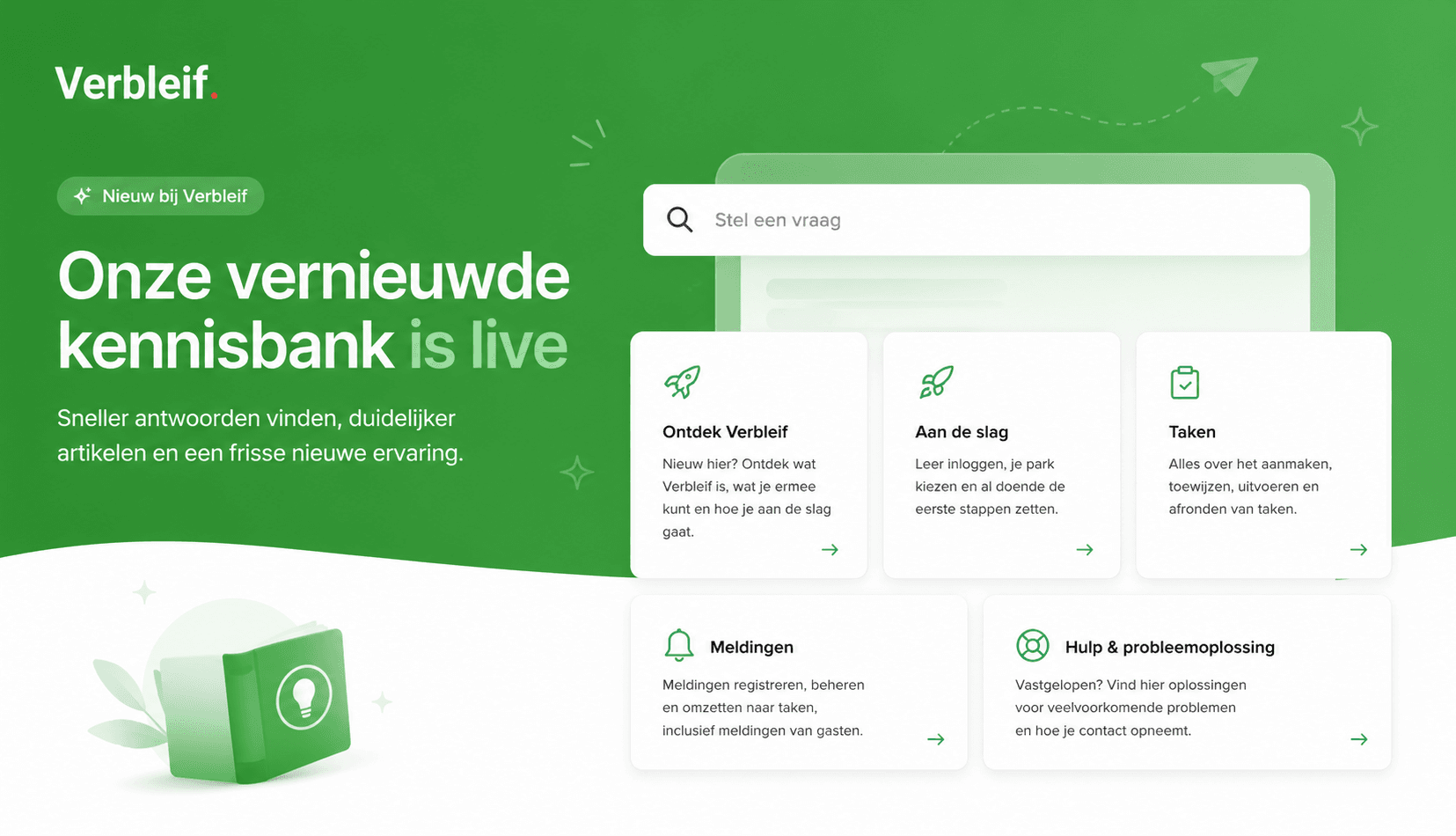
We have completely renewed our knowledge base. You will find clear explanations and step-by-step guides on working with Verbleif: from completing your first task to changeover days, guest reports, walk routes and settings at your park.
View knowledge baseThe full knowledge base is only available when you are signed in to Verbleif.
The documentation has been rebuilt around how you work with Verbleif every day. No longer a loose list of screens, but articles that match your role and your tasks at the park.
Getting started guides for signing in, choosing your park and completing your first task
Overview pages per role: reception, cleaning, technical service and administration
End-to-end scenarios such as a changeover day, handling a guest report or a cleaning round with a walk route
Explanations and how-tos on tasks, reports, properties, reservation info, offline work and settings
More than 130 articles in Dutch and English, searchable on docs.verbleif.com
Missing something or have a question? Contact support in the web app or mobile app and we will help you further.
Click the book icon at the bottom left.
Or click the chat icon at the bottom right and choose Help.
Tap the profile icon at the bottom right and open Knowledge base.
You can also go directly to docs.verbleif.com.
May 5, 2026
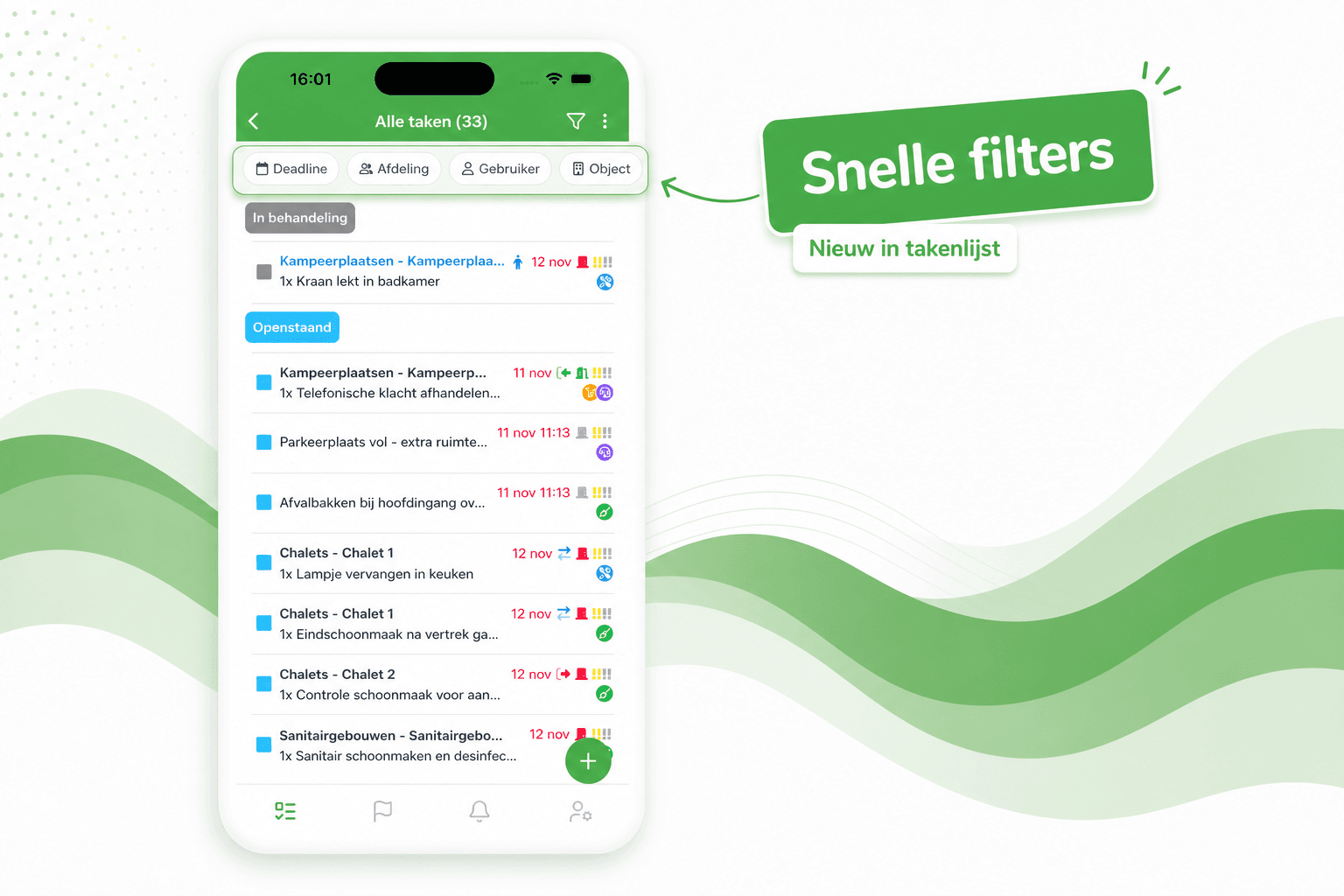
The task list now opens with a row of quick filters at the top — Deadline, Department, User, Object and more — so with a single tap you immediately see the right tasks, without first opening the full filter window.
Prefer a calmer view? Using the three-dots menu at the top right of the task list, you can easily turn off the quick filters. Your preference will be remembered for next time.
May 4, 2026
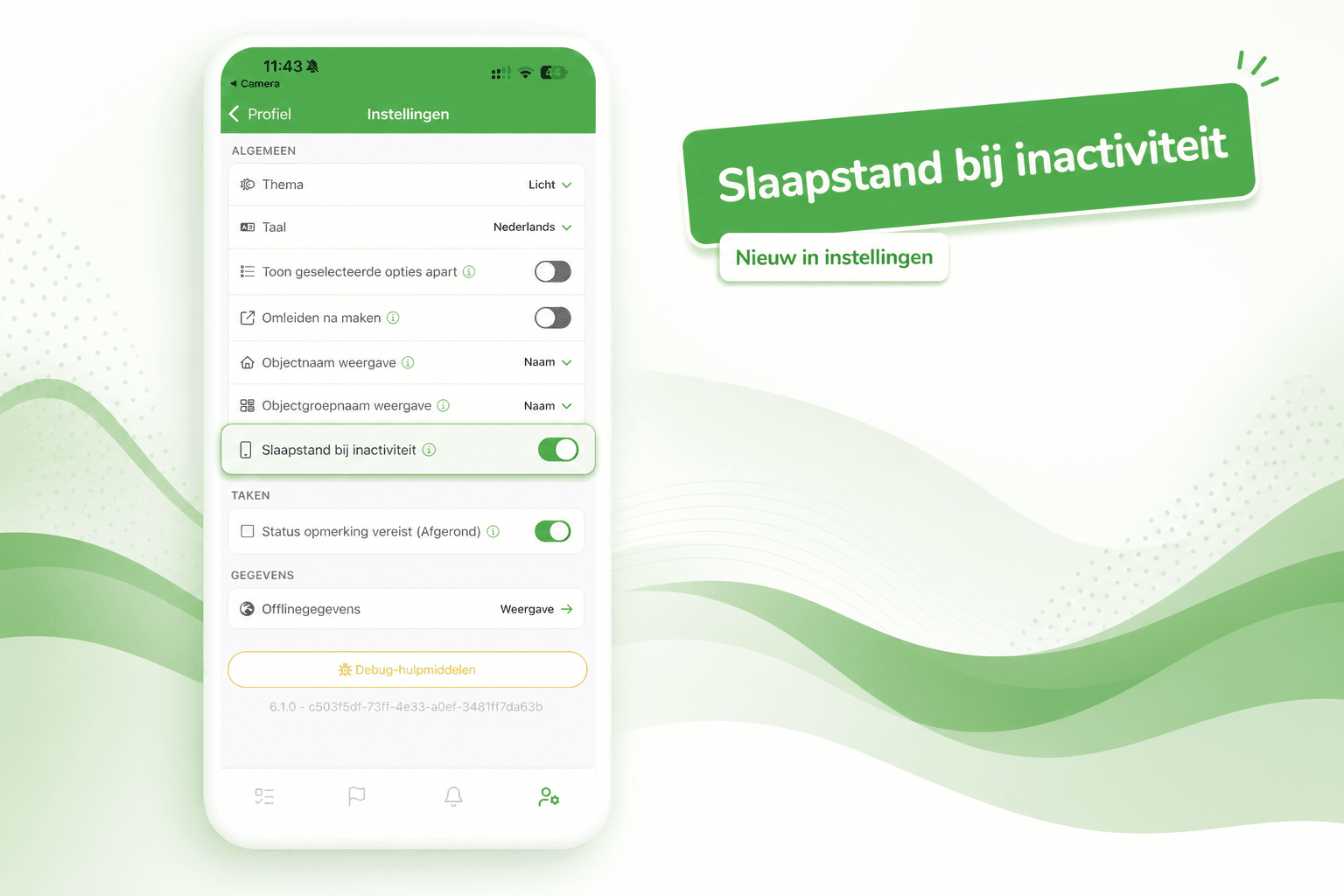
A new setting has been added that allows the app to sleep when it is inactive.
By default, the screen stays awake as before. Enable this option in Settings to let the screen turn off automatically when the app is not actively being used.
Apr 30, 2026
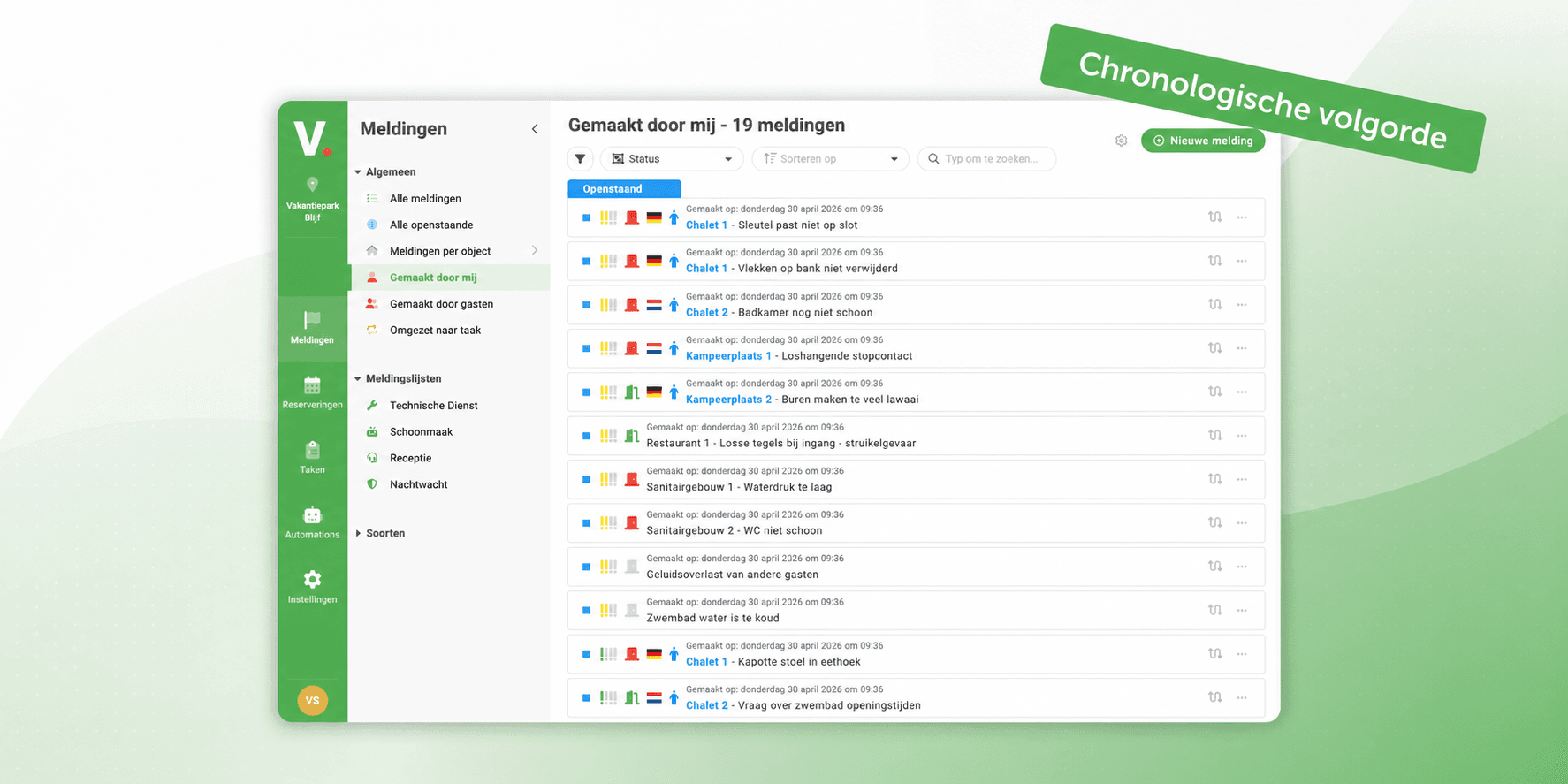
This update ensures that notifications are displayed in chronological order.
Previously, notifications were sorted from old to new, which meant you had to scroll down to see the latest notifications. From now on, the most important notifications are shown at the top, followed by the most recent ones.